
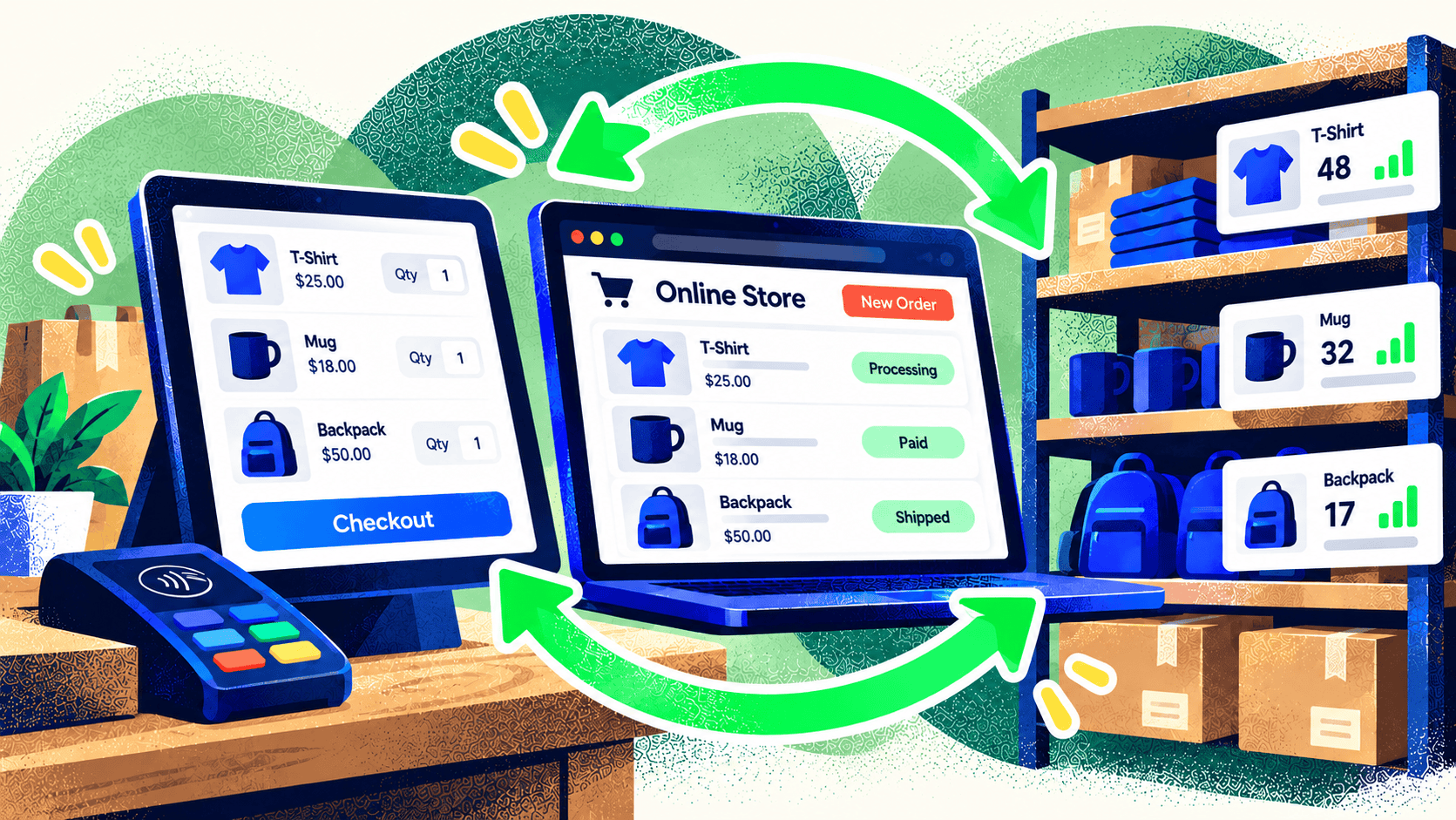
If you sell online and in person, a shopper should not have to guess whether the last item is actually available. Shopify POS and the online store can share product and inventory information through Shopify, but accurate stock still depends on location setup, tracking settings, and staff habits.
Shopify says POS sales update inventory for the selected location. That’s useful, but it also means an incorrect location on a device or an untracked product can produce a misleading count.
Set up locations to match the real business
Create a location for each store, warehouse, or fulfillment operation that needs separate stock visibility. Decide which locations can fulfill online orders. A retail store may hold products for walk-in customers, fulfill ship-from-store orders, or do both. Shopify’s location settings determine how that stock participates in online availability.
Check that each POS device uses the correct location. Then confirm the products and variants are stocked at the right places. A total across all locations can look healthy while the location eligible to fulfill an online order is empty.
Track the right products and variants
Turn on inventory tracking for physical products where quantity matters. Audit variant SKUs so a size or color sold in person maps to the same item online. Review bundles, custom items, and products sold in different units, such as a case in one channel and a single item in another. Those need explicit rules.
When staff receive stock, make adjustments, or move units between locations, use a documented process. If several people correct counts in different places without recording why, the number may look right today and be wrong again tomorrow.
Test the full sales cycle
Make a test sale in POS and confirm the correct location and variant changed. Place an online order for the same item and confirm its fulfillment location and available quantity. Then test a return, a cancellation, and a transfer. A store that handles the easy sale may still fail on these common exceptions.
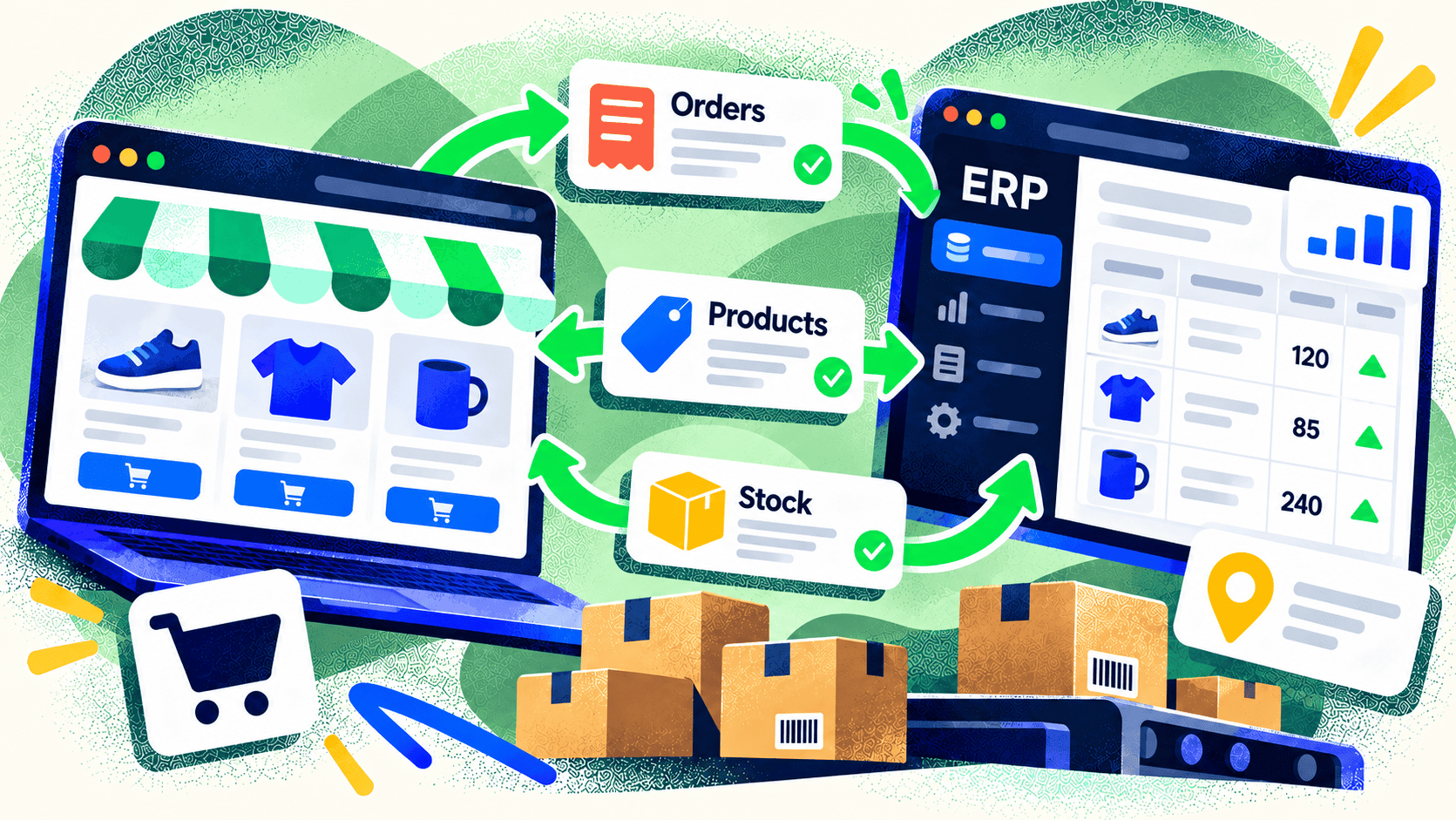
If a warehouse system or external POS also updates inventory, decide which system owns the count. Avoid two integrations writing competing values. Add error alerts and reconciliation so discrepancies are found before customers order unavailable items.
Give staff a way to spot problems
Watch for negative stock, repeated manual corrections, delayed order imports, and products that are available in one channel but inexplicably hidden in another. Track these exceptions by SKU and location. The patterns often reveal a configuration or process issue rather than a platform defect.
Kelp helps merchants connect storefronts, POS, inventory, and fulfillment workflows. If your team spends too much time reconciling Shopify stock, talk with us about the complete inventory path.
Leave a Comment